[Most Recent Entries] [Calendar View]
Thursday, October 8th, 2015
| Time | Event | ||||||||||||||||||||||||||||||||||||||||||||||||
| 8:00a | The Seagate Game Drive For Xbox: Do You Need A Green Drive?
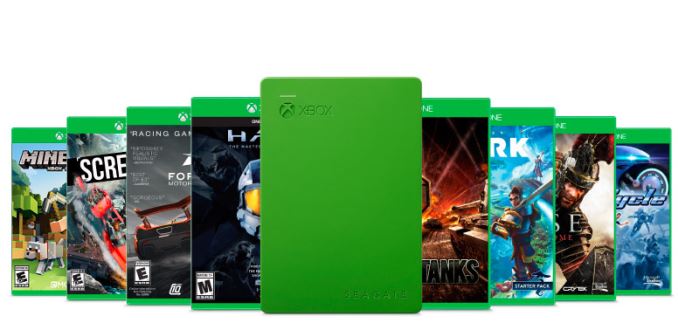
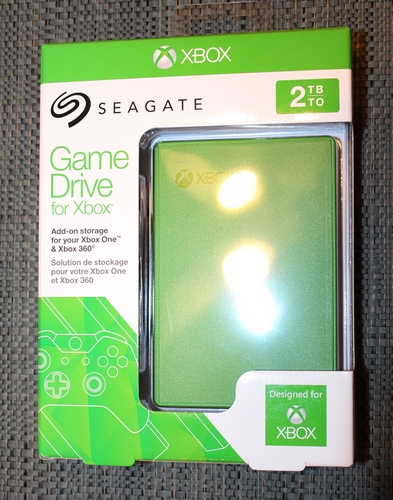
When Seagate first announced the Game Drive for Xbox, they chose Gamescon as a venue to launch the new product. With the prolific Xbox branding, this is not a drive they would expect you to purchase for use with your MacBook. Not that you couldn’t of course, but they seem to have a pretty clearly defined target market for the Game Drive. When Microsoft first launched the Xbox One, it came with a 500 GB internal drive, of which about 360 GB is available for the end user. Since that time, they have also released models with 1 TB of internal storage. It is unfortunate that the Xbox One does not feature an easily replaceable drive, but a few months after release they added support for external USB drives. The Seagate Game Drive for Xbox is specifically designed for this role. It has been certified by Microsoft for use with the Xbox, but mostly it has been branded with Xbox and colored Xbox green.
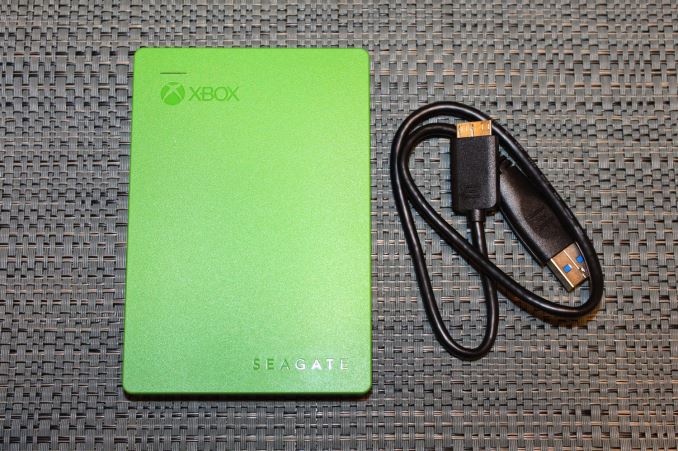
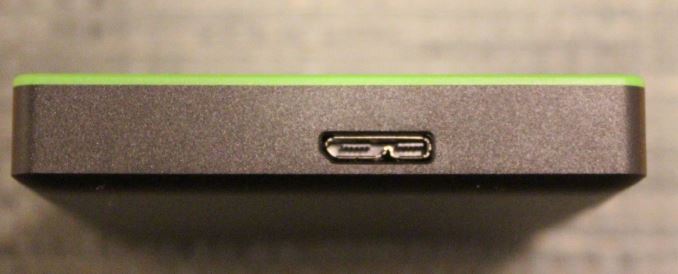
The package comes with just the drive and a micro USB 3.0 cable for use, which is 18-inches in length. The drive is pre-formatted with NTFS and if you want you can of course use this as a USB 3.0 storage drive on a PC as well. Maybe you are an Xbox fan. The drive is powered by the USB cable as well so there are no other connections necessary. Configuring the drive for use with the Xbox is as easy as plugging it in. The Xbox will detect it and ask if you want to format it for use with games and content, and you just say yes. Easy as that. Once installed on the Xbox it will ask you if you want to use it as the default save location for new downloads and game installs. The Xbox does not pool this drive, which makes it slightly more complicated to use since if you want your existing games there you have to move them. Pooling would make this seamless for the end user. The advantage of pooling though is that you can bring your Game Drive with you over to another Xbox and you will be guaranteed that your games are there, so you can just start playing.
As someone who has been around the field for a while, it continues to amaze me how much storage they can fit into a magnetic platter. The Game Drive for Xbox is 2 TB (calculated in base 10 for reasons only marketing would be able to explain) and adds a significant amount of storage to the Xbox One without being bulky. It is very small and quiet, being a laptop based drive. There are no cooling fans to fail, or ramp up in volume.
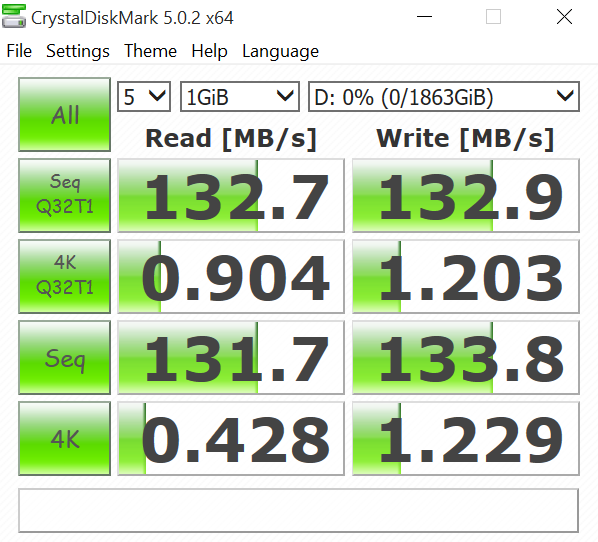
Performance of the Game Drive for Xbox is quite good for a small spinning drive. Read and write speed for sequential files is over 130 MB/s and being a spinning disk, random workloads fall well below that maximum speed.
The physical device measures 117mm x 80mm x 14.8mm and weighs 170 grams. It is actually smaller in person than I expected from the product shots. The green case is only green on the top, and black underneath. I like the green, but considering the Xbox One is generally black, it kind of stands out and doesn’t really match any home theatre equipment. So do you need a green USB hard drive for the Xbox? No, of course not. Considering the package is only a couple of dollars more than Seagate’s standard 2.5-inch drive USB 3.0 product, I appreciate them trying to reach out to a different audience than those who just want a basic black hard drive, and in case you were wondering, it also works with the Xbox 360. | ||||||||||||||||||||||||||||||||||||||||||||||||
| 8:00a | The Andyson N500 Titanium PSU Review: High Efficiency For The Common PC 80Plus Titanium certified PSUs are very rare and most are high output units that are not meant for normal PCs. Andyson is making a surprise move with the release of their N Titanium series, which are targeted towards mainstream users and come with reasonable price tags. Today we are having a look at the N500 Titanium, the 500W variation of the series, a unit ideal for typical home and gaming PCs. | ||||||||||||||||||||||||||||||||||||||||||||||||
| 2:00p | Netflix, Windows 10 and Metered Network Connections
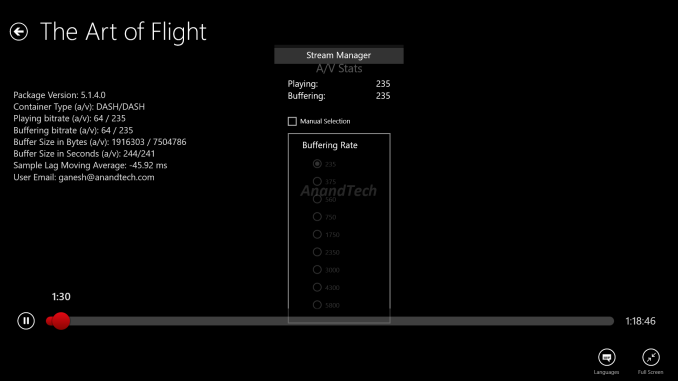
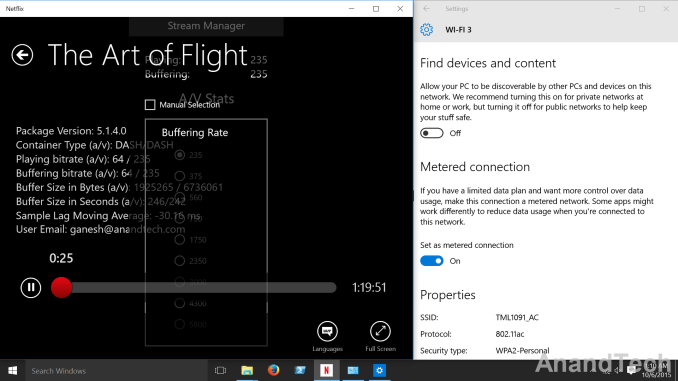
Readers of our mini-PC reviews would have noticed that our routine involves detailed power consumption tests. Ensuring a level playing field for all the units involves turning off automatic Windows updates (so that we don't have unnecessary processes taking up CPU cycles or downloading of updates consuming network bandwidth and driving up the idle power consumption). On Windows 8.1 and earlier versions, turning off automatic updates was trivial, but Windows 10 presents some challenges. Our review of the ECS LIVA Core (published yesterday) was the first to make use of Windows 10. Turning off updates in Windows 10 Professional is not too difficult using the Group Policy editor, but Windows 10 Home has only one way to prevent updates from getting downloaded - by setting the network interface as a metered connection. (Update: It is also possible to turn off the Windows Update Service itself in Windows 10 Home) After having configured the WLAN connection on the ECS LIVA Core to be metered, we set about running our benchmarks. Testing out Netflix streaming is a part of our evaluation of the HTPC credentials of a system. Firing up our test stream in the Windows 10 Netflix app and bringing up the debug information gave us a nasty shock. Despite being on a 75 Mbps Internet connection, the app was streaming the test title at a measly 235 kbps. Trying to manually set a higher buffering bitrate in the Stream Manager (accessible via Ctrl-Shift-Alt-S) ended up force-quitting the app without any warning.
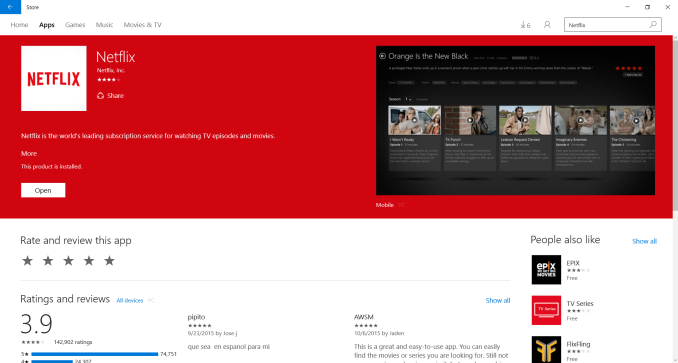
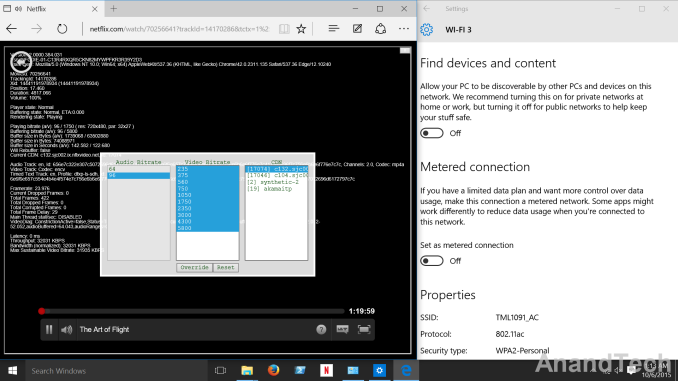
Windows 10 Netflix App I immediately searched online and found a Reddit thread dealing with a similar issue. Initially, I thought that the Netflix app was buggy (as a previous version on another Windows 10 PC was able to stream at the maximum bitrate without any issues). In order to rule out the PC's WLAN connection as the culprit, I fired up Microsoft Edge and streamed the test title using the HTML 5 interface for Netflix.
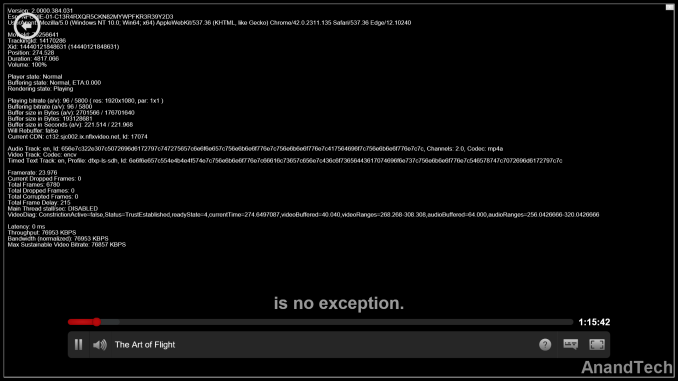
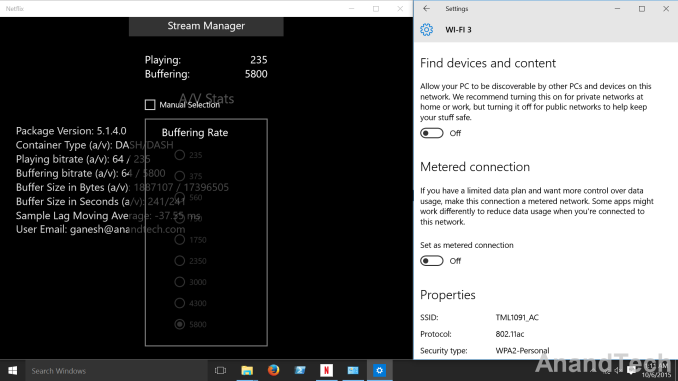
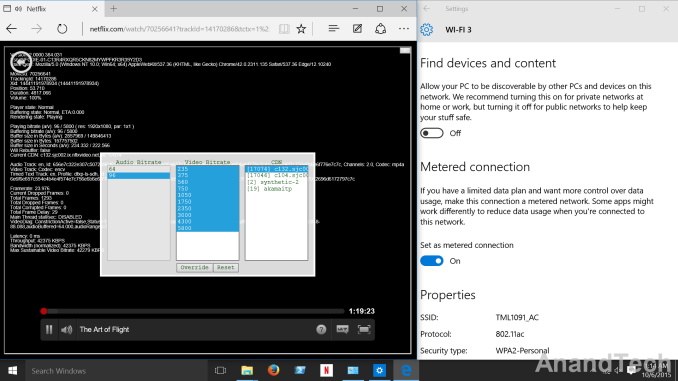
Windows 10 - Microsoft Edge - Netflix HTML 5 Streaming The title streamed with the maximum video bitrate (similar to the app), but the audio was only 2.0 at 96 kbps (no Dolby Digital Plus 5.1 stream at 192 kbps). A few days after finishing up the benchmarking, the OS threw up a message indicating that it had been a long time since it had been able to check for updates. That is when it struck me that the metered connection could have been the culprit for the behavior of the Netflix app. I immediately tested out with the network connection set to metered and also with the setting at default (non-metered)
As I had guessed, the metered connection indeed turned out to be the issue. I also confirmed that the metered connection setting had no effect on the HTML 5 streaming case using Microsoft Edge.
All in all, the PSA here is that if one sets the network connection to metered for any purpose, make sure to turn it off if Netflix streaming at the highest bitrate is required through the Windows 10 app. | ||||||||||||||||||||||||||||||||||||||||||||||||
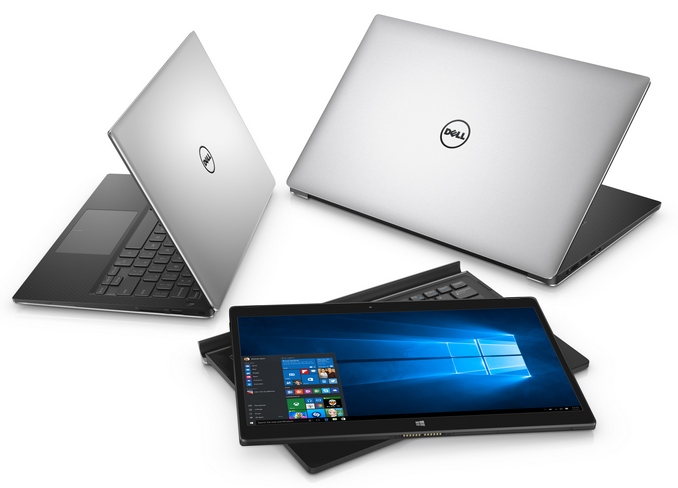
| 7:10p | Dell XPS Lineup Is Reinvigorated With Skylake On The New XPS 12, XPS 13, And XPS 15
Dell really put their stamp on the 2015 Ultrabook lineup this year with the Dell XPS 13 with its amazing Infinity Display. They packed a 13.3-inch display into a notebook that would normally house something closer to 11-inches, and no other manufacturer has come close to it this year. Performance was great, battery life was the new benchmark, and other than a couple of foibles such as a camera that points up at your chin, and some aggressive use of Content Adaptive Backlight Control (CABC) there was very little to complain about on the XPS 13. Today, Dell is refreshing the XPS 13 with Skylake, and trying to bring the same amazing design to the XPS 15 and the new XPS 12 2-in-1. XPS 13
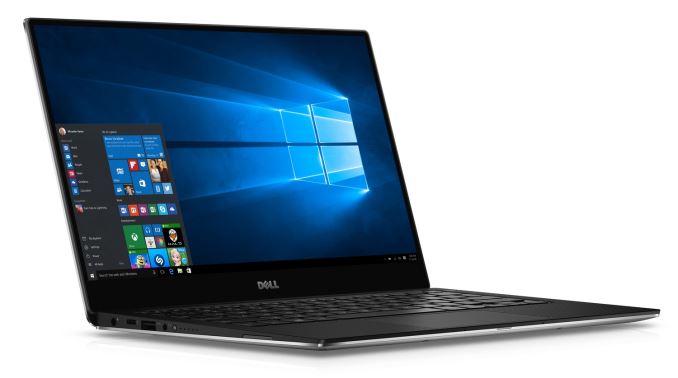
Let’s start with the XPS 13, which should be familiar to anyone who read my review of it. Dell has tried to take the XPS 13 and push it to the next level, and they are starting with Skyake. Dell will offer Core i3-6100U all the way up to Core i7-6600U. This means the GPU will be the Intel HD 520 model, so no Iris options on the XPS 13 range unfortunately. Memory options start at 4 GB and go up to 16 GB of LPDDR3, and storage gets a bump too. The base 128 GB model is still a SATA based SSD, but the 256 GB, 512 GB, and 1 TB models are all PCIe versions. These are evolutionary updates, but the move to Skylake has also given Dell the opportunity to add Thunderbolt 3 to the XPS 13 through a USB Type-C which also supports 10 Gbps USB, VGA, HDMI, Ethernet, and charging. Battery life was a pretty big part of the Broadwell based XPS 13, and on the 1080p model we got over 15 hours on our light workload. The move to Skylake looks to move that bar even further out with Dell saying the new model is rated at up to 18 hours. Yes, it is an evolutionary update, but it is an evolutionary update of one of the best notebooks of 2015 so far. XPS 15
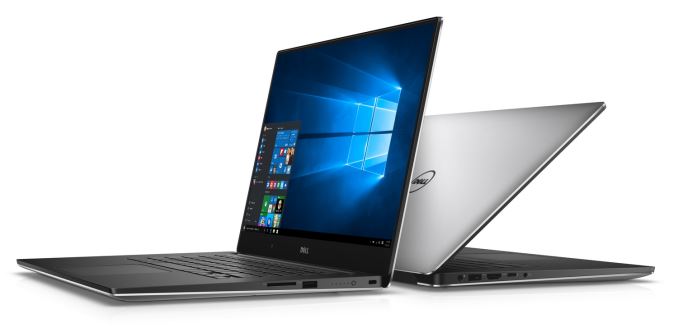
For those that prefer a larger notebook, the XPS 15 has been around for a while now, but when we saw it refreshed back at CES, it was still in the 2014 chassis. Today Dell has brought the look and feel of the Infinity Display to the XPS 15. They have squeezed a 15.6-inch display into the body of a 14-inch notebook. Let’s talk about that display too. It is an Ultrasharp 4K Ultra HD model, which comes in at 282 pixels per inch and has a 350-nit brightness rating. The 4K model also covers 100% of the Adobe RGB color space which is a wider gamut than the typical sRGB space of most notebooks. It offers PremierColor Software as well to remap the smaller sRGB space into Adobe RGB so that colors are not portrayed incorrectly when viewing sRGB content. The XPS 15 has been the model where Dell steps up the performance to a quad-core version, and despite the smaller chassis due to the Infinity Display that has not changed. The base model comes with the Intel Core i3-6100H which is a dual-core 35 Watt part, but you can also get the i5-6300HQ and i7-6700HQ which are both quad-core 45 Watt CPUs. Up to 32 GB of DDR4 is available through two SODIMM slots, and the XPS 15 offers a discrete NVIDIA GTX 960M GPU as well. You can get the XPS 15 with a spinning drive if you want (I wouldn’t recommend it) or, like the XPS 13, Dell offers PCIe SSDs up to 1 TB. Dell is offering either a 56 Wh or 84 Wh battery, and the larger battery on the 1080p version of the XPS 15 is rated for up to 17 hours. For those that need faster wireless connectivity, Dell also offers a 3x3 802.11ac wireless card. Like the XPS 13, it also features Thunderbolt 3 through Type-C. One thing you do lose by moving to a 14-inch chassis is the room for a dedicated number pad. XPS 12
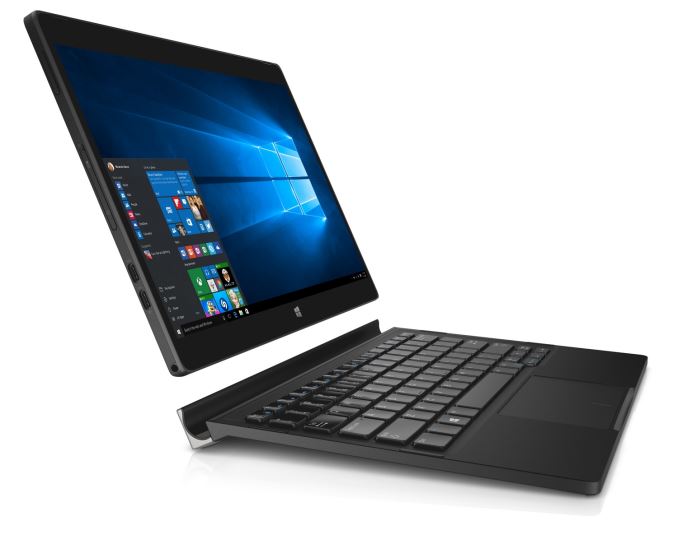
The final XPS model announced today is the XPS 12, which is a 2-in-1 tablet with a docking keyboard. Think of this as Dell’s take on the Surface Pro, but Dell has taken a couple of different paths than Microsoft did on their 2-in-1 tablet. First, the display is a 3840x2160 UHD with a smartphone level 352 pixels per inch and 400 nits of brightness and 100% Adobe RGB. There is also a 1080p model with sRGB coverage which should help with battery life. Dell has gone with the latest Skylake version of Core m to power this tablet, with the m5-6Y54 processor which turbos up to 2.7 GHz. 8 GB of LPDDR3 memory is available, and you can get either 128 GB of 256 GB of SATA SSD storage. Keeping all of this powered is a 30 Wh battery. We tested the Dell Venue 11 7000, which was similar to this in that it had a docking keyboard, but the keyboard added a lot of weight due to the extra battery inside. Dell has taken a different approach here and the keyboard base only adds just under a pound to the 1.75 lb tablet. The keyboard on the Venue 11 7000 was also not great, and the XPS 12 is offering a full size backlit keyboard with 1.3 mm of key travel, which should be a lot better. The trackpad is a glass precision trackpad. The device itself is made of a magnesium alloy and covered in soft touch paint, and the display has Corning Gorilla Glass NBT. Dell seems to have gone all-in on Thunderbolt, with this tablet featuring not one but two Type-C connectors with Thunderbolt 3. The 45 Watt A/C adapter also connects over the Type-C, and it is great to see Dell embracing this to get rid of the myriad of proprietary charging connectors that have plagued PCs for decades.
Dell was already at the forefront this year with their notebook design, so it’s great to see them take that same design and apply it to the XPS 15. The XPS 12 looks to be a decent tablet with a good looking keyboard dock, and that has been one of the biggest issues with convertible tablets with attachable docks so I am excited to see this in person and give it a try. The notebooks will be available on Dell.com starting today, and the tablet will be coming in November. Source: Dell | ||||||||||||||||||||||||||||||||||||||||||||||||
| << Previous Day |
2015/10/08 [Calendar] |
Next Day >> |