[Most Recent Entries] [Calendar View]
Tuesday, May 10th, 2016
| Time | Event | |||||||||||||||||||||||||||||||||||||||||||||||||||||||||||||||||||||||||
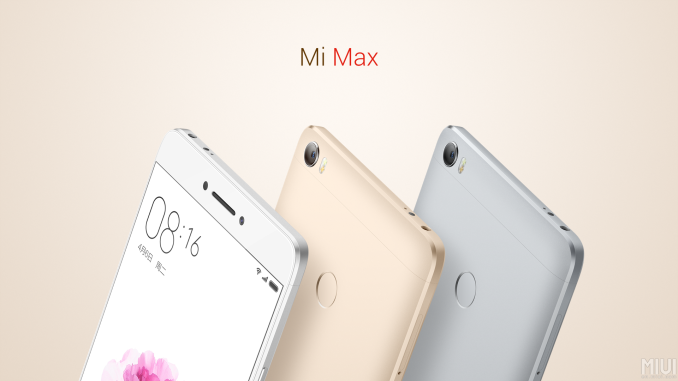
| 9:40a | Xiaomi Launches the Mi Max: $230-$310, 6.4-inch, 4850 mAh, 7.5mm, Dual SIM
After posting several teasers on the official twitter feed, Xiaomi has now announced a large battery, large screen ‘smartphone’ that blurs the line between 7-inch tablets and 6-inch smartphone. The Mi Max is a step above the previous Mi Note devices, trying to combine the pervasive ‘thin’ design in modern smartphones while also adding plenty of battery life. The only way to effectively do this is to add area, so the final result is a 6.4-inch device.
The phablet will be offered in three models, similar to the Mi 5. The low-end model, coming it at an equivalent of $230, will feature a base Snapdragon 650 with 3GB of DRAM and 32GB of storage. Moving up the chain changes the SoC to the 652 and doubles the storage. The best version tops out at 4GB of DRAM and 128GB of storage, and all three allow installation of a 128GB microSD card in place of one of the SIM cards.
The Snapdragon 650 and 652 are renamed models of the 618 and 620 respectively, as we reported in December. The two SoCs differ in the number of A72 cores – the 650 is a ‘six-core’ part, featuring dual ARM Cortex A72 cores at 1.8 GHz and quad ARM Cortex A53 cores at 1.44 GHz in a big.LITTLE configuration, whereas the 652 has quad-A72 cores at the same frequency. These parts have an 3 or 4GB of DRAM (in an LPDDR3 memory interface we assume), along with Adreno 510 graphics. In the Mi Max, this powers the 6.44-inch display running at a Full HD (1920x1080) resolution, which comes to a 74.8% screen-to-body ratio. The SoCs use Qualcomm’s integrated X8 LTE modem, rated at category 7, and supports dual 20 MHz carrier aggregation. The Mi Max will support dual 4G SIM cards (one slot also supports microSD), a rear based fingerprint sensor, a 16MP PDAF rear camera and a 5MP front camera with an 85º wide-angle lens. The device weighs in at 203g, which as a whole is not too dissimilar from the 6-inch HTC One Max.
Other features include Quick Charge 3.0 (rated at 83% in 30 minutes), active noise cancellation and 802.11ac, but USB is only at 2.0 speeds. Black, White and Gold colors are to be released, although release dates outside of China are unknown at this point. Xiaomi Announces MIUI 8.0With Xiaomi devices, the default OS uses their custom Mi User Interface (MIUI), and as part of the announcement today version 8.0 is soon to be available to Chinese users who sign up to the beta program. Mi 2/2S/3/4/4C/4S/5/Max and Redmi/Mi Note devices are supported, with beta testing starting on June 1st. MIUI 8.0 will include a new power saving mode that freezes background activity, multi-window management, fingerprint security for notes, a bundled QR and barcode scanner, a mathematics solver included, an updated camera and gallery software, and a base Chinese font redesign.
| |||||||||||||||||||||||||||||||||||||||||||||||||||||||||||||||||||||||||
| 10:00a | Two Months With: The Huawei Mate S in Rose Gold, with Force Touch
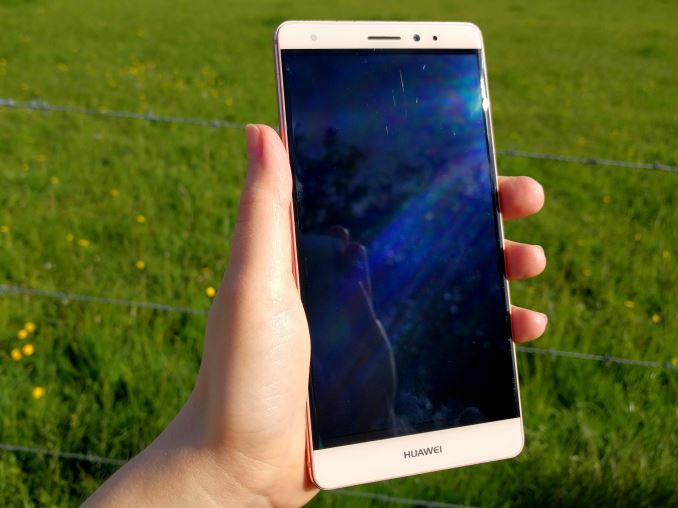
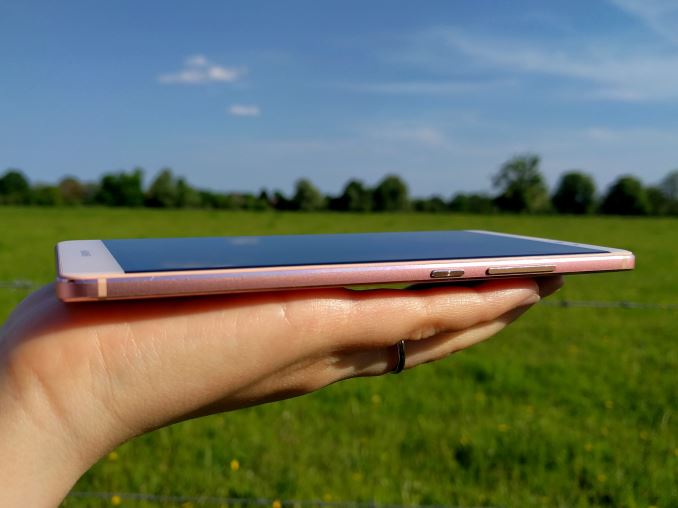
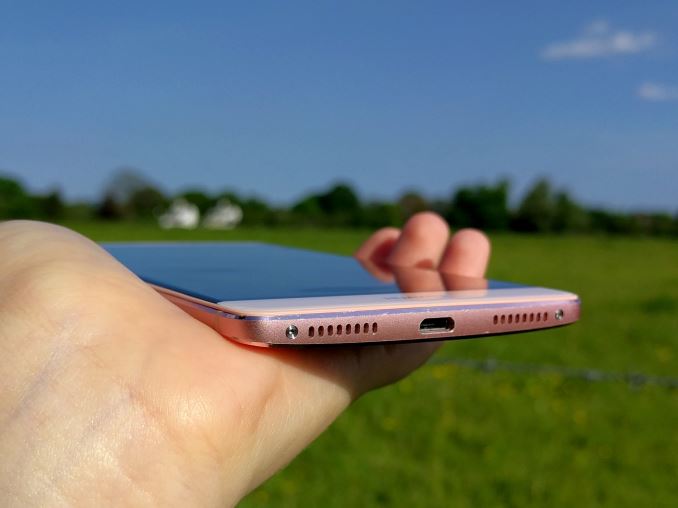
Last time I wrote about smartphones beyond the odd news post and live blogs at events, I had purchased a $160 smartphone for my own use that ran four days on a single battery charge. Not too long after, Huawei invited me over to their UK office to show me the Mate S, and their new Force Touch edition. Andrei’s review of the Mate S had been uploaded only the previous day, so part of the discussion was around some of the findings in that review, but the purpose of bringing me into the London office was to actually try the new features. I was taken through the motions of Force Touch on Huawei’s hardware. I wasn’t expecting it at the time, but at the end of the demonstration they handed me the unit and said ‘try it for a while, tell us what you think’. So I’ll admit from the start – it isn’t every day that I use a $650 smartphone. This is Huawei’s top model of the Mate S, featuring 128 GB of storage, Force Touch, and in rose gold, which sets it apart from other Mate S implementations. On the color, which is typically not one I would have considered, I had more positive than negative comments on the rose gold in the past couple of months, with most questions about the color being directed to the comparison to Apple’s equivalent. A number of people also suggested that the Mate S was copying the iPhone, which was not an uncommon sentiment. In these ‘a month with’ pieces, I use the smartphone as a daily driver, trying to see how easy the device fits into my slightly uncommon use case. I also try to use the new features on offer when they become relevant to what I do. If you want the full review of the Mate S, please read Andrei’s very detailed breakdown of the Mate S and the Kirin 935 SoC – this piece is my expression my personal opinion as a technical user but not a smartphone reviewer.
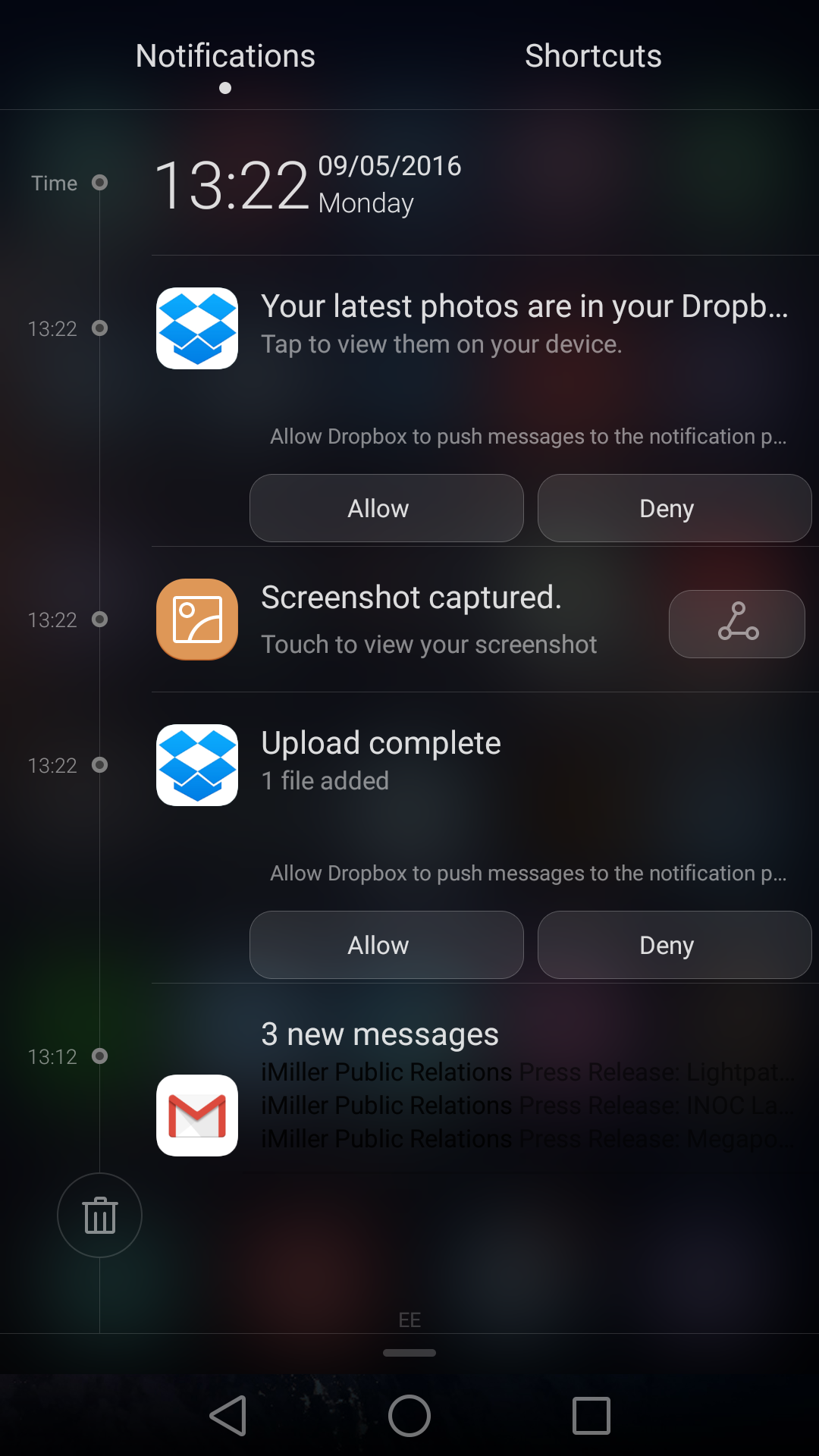
For readers who haven’t come across these posts before on AnandTech, my use case and feel about the smartphone industry is a little different from most. I’m rather tight-fisted when it comes to smartphones, and I feel anything over $200 seems a bit excessive especially when it’s my money. I use my smartphone 99% of the time as a data device, rarely making calls, but either taking pictures and talking to the family outside of work, playing basic smartphone games in downtime, or using it as a data point while working. I also write reviews on my smartphone, using Evernote during trips on the London Underground where I’d rather write for 20 minutes when I have no internet than sit idle. This review is going to be a list of pros and cons that I’ve come across in the last couple of months that are purely related to me. Your mileage may vary. When I gave Huawei this feedback, they agreed with most of what I had to say. I also took a small video explaining some of the interesting features that were difficult to explain in text: Pro: Fingerprint Sensor SpeedWhen I road-tested the HTC One max, I struggled using the fingerprint sensor they had on it. It was an early generation swipe sensor on the rear of the phone, and no matter what I did it would only unlock 30% of the time or even less. With the swipe sensor, it only worked within a small range of angles, and invariably with a large phone you do not always hold it at the same angle to unlock. Having never used any other fingerprint sensor other than that at the time, the sensor on the Mate S was superb. I logged five different fingers in the system (first two on each hand and a third finger on my right), and it beats my previous experience in two ways. Firstly, it’s a touch sensor, which means no swiping. Secondly, the response time is super quick, so if it fails to unlock another attempt is less than a third of a second away. It’s not only quick by comparison to the One max, but I’ve also played with the 6P a little bit and the Mate S easily beats the 6P in time to calculate the unlock and then retry. Because I’ve gotten so used to the Mate S, I end up removing my finger from the sensor too early on the 6P, and it asks to try again. It’s going to be a tough habit to break out of. Con: EMUI, Software Glitches and Response to VoiceHere’s a triple whammy of annoyance. EMUI, for all its best wishes, attempts to be very iOS like. Despite being on an Android base, there is no true list of apps or app drawer, limiting each app icon to only one screen. My typical Android experience up to this point involves some app on multiple screens, just to save time, but that isn’t possible here. The background seems only to be changeable to a set of Huawei defaults, as even after two months I haven’t found a way to put my own picture there (all the normal Android ways don’t work). EMUI also interferes with a number of apps I like to use, such as a network speed monitor so I can tell when I’m on a limited connection if some app in the background is hogging all the data. My app of choice, while it starts up, seems to be ejected from memory automatically very quickly when the screen is turned off. The voice glitching is another aspect to be wary, and this comes in two forms. Firstly, at the end of my last smartphone test, my use of an Android phone had evolved to the point where I was starting to use Google Now to do simple tasks like set reminders and alarms, or ask basic questions very easily. On the Cubot H1, a smartphone with four A53 ARM cores running at 1.0 GHz, Google Now responded immediately without hesitation. However, the Mate S has issues. Sometimes saying ‘Google Now’ doesn’t activate the feature, and when it does, the system ends up trying to load something for three seconds and you get the ‘I didn’t hear that’ because the processor was busy. That means every time you ask it something, it’s an additional delay that I could have spent typing the question into Google for. The other voice glitch is completely random and happens about twice a month. I will have the phone on the desk or in my pocket when talking to friends when out of the blue it will start talking about how it can’t understand a command, reach a contact, or let you know where it is. It has even done this while sitting on my bed side table while speaking with my wife. There is an always on voice feature to help you find where the phone is (which never seems to activate when you are actually looking for the phone), but the fact it activates randomly and usually when it is at high volume makes the user look like a random idiot. It’s not a good look. Pro: KnucklesOne of Huawei’s interesting features on the Mate S is the ability to do certain things with your knuckles. It sounds odd, but essentially this means striking the screen with one or two knuckles and drawing out a box or a letter to perform certain functions. Writing a C for example, no matter where you are in Android (or even when locked), will force the camera application to load. This makes it easy to take pictures rather than searching for the camera icon (which you can’t put on multiple screens due to EMUI). The software recognizes C, M and two other letters, all of which can be customized to run the application you want. Please watch the video above for a demonstration. The other knuckle-based features aren’t that useful so much, but are still there for the odd time you show them off to friends. A double tap will take a screenshot, while forming a box on any screen will cause what is in the box to be cropped into an image, which can then have filters or shapes applied. A double knuckle double tap will let the smartphone record both audio and on-screen activity, so if you want to show how to do something to someone else, you can make a direct video recording and send it to them. Con: Gmail App on EMUI, Split WindowsI’ll round the EMUI issues off with these two. I use the Gmail app like a number of Android users, however the EMUI implementation is extremely annoying, especially with the backgrounds in play. When you have email and a number of new messages, then scroll down the notifications bar, EMUI displays the name of the sender and the email topic in black. This is black on a gray notifications bar which is semi-transparent, but most of the Huawei backgrounds for EMUI are quite dark, meaning you can’t read anything. This just adds another couple of seconds to looking at email and completely negates a quick notification look at the subject to see if it’s something you should respond to.
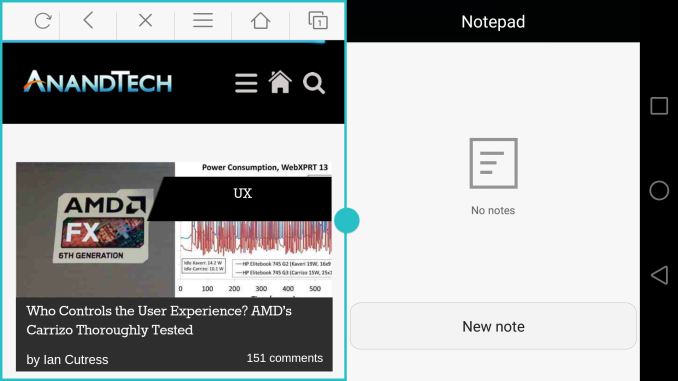
Huawei does implement a variant of multitasking in EMUI called Split Windows, and is extremely similar to other multitasking arrangements in other Android and iOS devices. It’s a good feature that I can see myself using a lot of, so why list it as a con? Well I’m not sure whether it is new, or it was a last decision thing, but the split windows require each app to be able to dynamically handle the adjustment of two screens side by side – the split windows feature can’t manage it on the fly. As a result, there are only eight apps that use the feature, and they are all from Huawei, and I don’t tend to use any of them. My best use for this, because of the limited application limitation, is typically when I want to listen to music on YouTube while searching in another browser window. But both browser windows have to be using Huawei’s browser, and not the one I normally use with all my bookmarks and cookies.
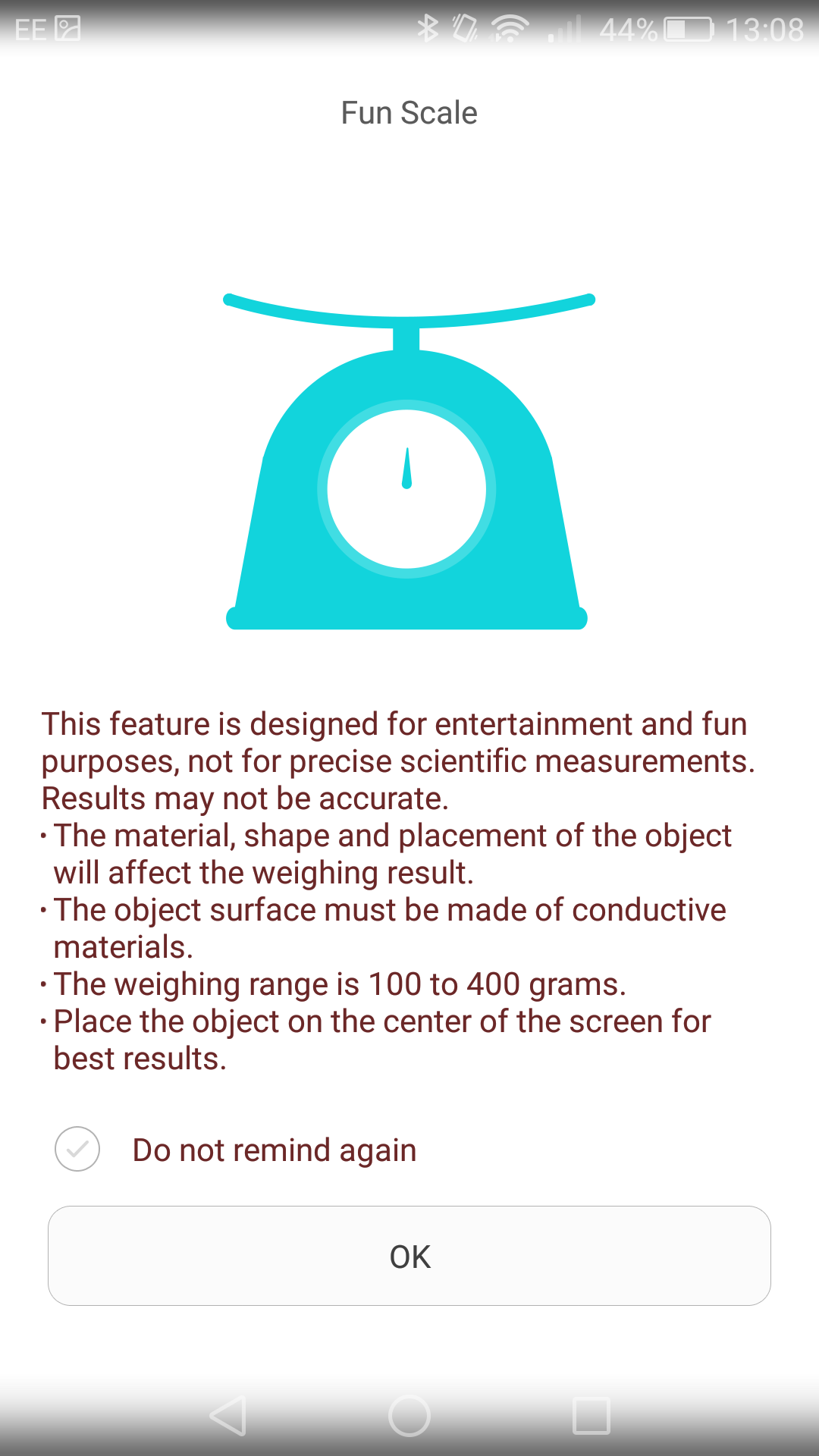
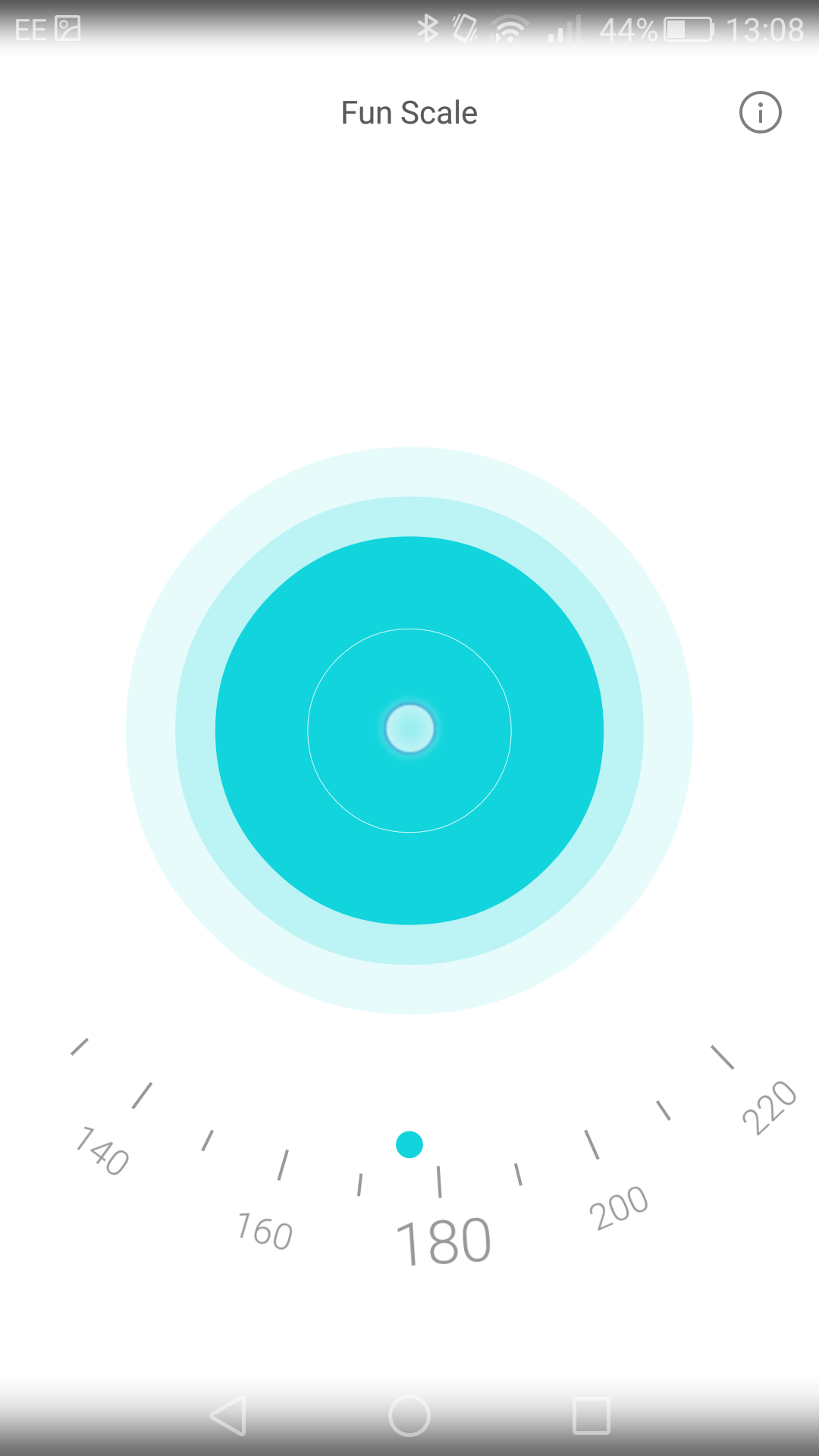
Meh: Force TouchSo Huawei technically came out with a Force/3D Touch implementation before Apple, however this implementation seems limited in scope. The two best things you can do with it is zoom in on pictures in the gallery using one finger (it comes up like a magnifying glass with a zoomed view) and weigh round fruit between 100 and 400 g (0.15-0.90 lbs). There are other non-obvious uses for Force Touch, but these are the only two I’ve used since having the device, and even then I don’t use the latter except to show the feature off. The picture zooming thing gets a bit more use, but even then it’s fairly minimal. In order to make Force Touch more of a thing, it has to be obvious that it does more in more apps.
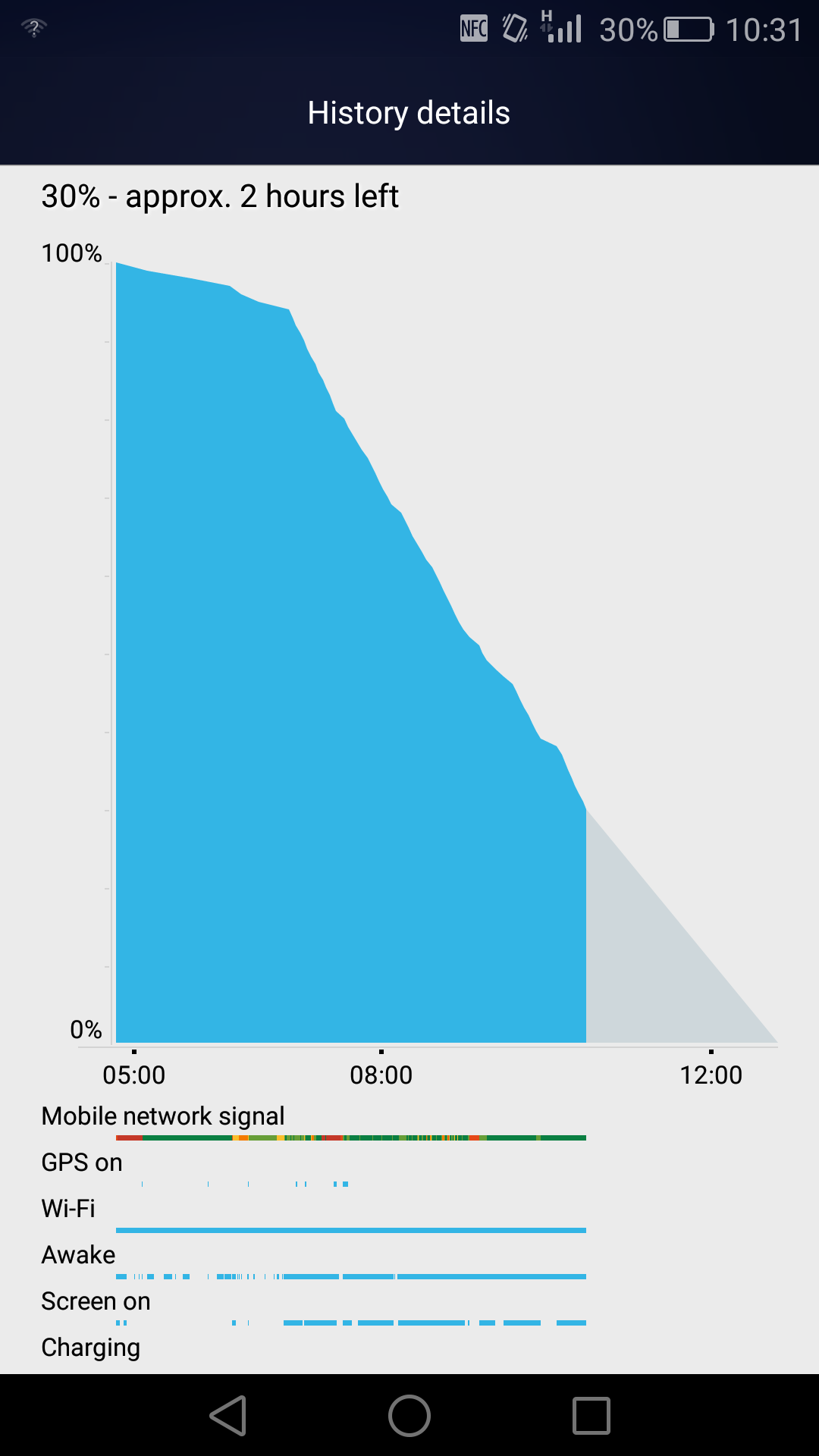
Pro: Screen SizeEver since I used the HTC One Max as a daily driver, I am sold in large phones. I get why they exist, and I somehow adapted to them rather quickly. The Mate S is 5.7-inches, below the 6-inch of the One max but above the 5.5-inch of the Cubot H1. The screen has a reasonable brightness range, although doesn’t go as low as some other devices like the Nexus 6P. What I would say though is you won’t be using the Mate S in high brightness mode that often. This brings me to an issue I’ve had with the Mate S: battery life. Con: Battery LifeWe covered this in the original Mate S review, but due to an issue in the SoC silicon, the memory controller consumes a lot of power when at high frequency, even when idle. For most smartphone users that means nothing, but it relies on the OS to de-clock the memory when speed is not required. I’m not sure how often this happens, but I can easily burn through 50-60% of the battery in three hours, watching video/flipping between Skype and Twitter even at low brightness while at an airport. True story.
Putting it in Flight Mode and not using it during the 10-hour flight by comparison and the device was barely sipping at the power. But it does mean the Mate S is certainly a device that requires a daily charge, sometimes before the end of the day. This was a very quick slam to the face coming from a four-day charge smartphone in my last road test. Pro: Software Eviction on BatteryBecause I’m not so liberal with spending money on smartphones, I’ve often ended up with low power, low memory devices, or I worry about what background services are eating power. I get the typical case of memory and battery anxiety, wondering if I’m still going at full speed when I need it or if the device is going to last the full day. This is especially true when using the device at an event. Luckily there are two things on the Mate S that help here: an optimization widget and a software power detector. The first one is software which I’m not sure is part of Android, but does an optimization of currently running apps. (I know that removing apps from memory means it costs power when you need them next, but somehow memory anxiety still exists, despite having 2GB to play with.) The second is the eviction on battery use – if the OS detects that a certain piece of software is causing the SoC to draw more current, it will tell you and offer to close the software. I have seen people complain that on the Mate S this feature is fairly aggressive, and it does come across that way, but at least it gives me the option to do so. Con: CameraAs mentioned in Andrei’s review, the camera on the Mate S isn’t one of the plus points in the device. It certainly takes a picture, but I’m an unsteady photographer who wants the photo taken as quickly as possible, and sometimes that doesn’t happen. Don’t get me wrong, I’ve used the Mate S to take pictures for AnandTech Live Blogs, but when an image gets compressed to the size of ravioli it doesn’t matter too much anyway. But on the important stuff, the family photos, there are smartphones with better quality implementations at this price point. As with my other road tests, here are some example pictures. Pro: Camera and Document AdjustmentThe camera has one nice feature worth mentioning, especially for anyone having to take notes on lectures/meetings or someone who photographs a lot of documents. The Document Readjustment option in the camera attempts to detect the edges of a piece of paper, a monitor or a projection, and will tilt, stretch, rotate, expand and adjust the image as necessary to give a flat representation. This means that you can take the image at a wide angle (I’m not sure the limit, but it certainly works up to 45 degrees) and it will come out, around 80% of the time, like the photograph was taken head on. I have used this on a number of presentations over the last couple of months, and in the review of a server motherboard recently I used it when the BIOS did not have a print screen option. In this case, I’d normally set up my DSLR on a tripod and take pictures that way, but with the Mate S I was able to simply raise the camera each time on a different screen, wait a second, and then take the image. So rather than having to crop then color balance, all I had to do for 95% of the photographs is a bulk color balance. I would note however that it does seem to strip the EXIF data from the image. Con: Call QualityI don't have any tools that will directly measure call quality, but I found the Mate S to be difficult to use in any environment with mild background noise. When in a quiet environment though, a call was clear to hear and easy to speak to. I'm not sure if it was the position of the microphone on the bottom, but more often than not I would have to fish out my headphones and plug them in, so I could arrange the phone and speak directly into the bottom of it.
Con: Too Many ConsI’ve been using the Huawei Mate S 128 GB with Force Touch in rose gold for over two months now. It has many good features, and some of them feel top notch in my limited testing sphere, such as the fingerprint sensor and the ability to knuckle into the camera at any time. But it has too many issues to make me fully content with the device. Most are derived from software, most likely the nature of the latest version of EMUI supported on the Mate S, but things like not being able to read email notifications at a glance or the random nature of how it likes to talk to you in the most random situations mean that I’d probably end up buying something without EMUI or flashing the device (assuming I could get all the feature I like some other way). I feel if that it was running a base version of Android, it might have given a better user experience. All that being said, the one waking day battery life (or under one day of battery on active days) is something not easy to overcome, and means carrying around a battery pack. At least anecdotally it felt like it charged rather quickly. Along with the Mate S, part of the way through I decided to also try out the Huawei TalkBand B2 smartwatch for some time. The TalkBand B2 was a one of the cheap press event freebies, but it tracks a few smartwatch type features in a non-Android way at a low price and comes with a monochrome display. For someone who has resisted the smartwatch market up until this point, as well as being apprehensive about the utility of such devices, I decided to bite the bullet and at least have a go. I’ll write up my experiences is a separate piece and upload it shortly. | |||||||||||||||||||||||||||||||||||||||||||||||||||||||||||||||||||||||||
| 6:05p | Microsoft Adds V-Sync Control And Adaptive Framerate Support To The Universal Windows Platform
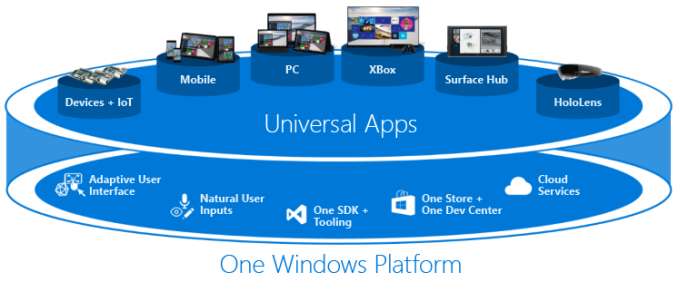
Microsoft has certainly gone all-in on their Universal Windows Platform (UWP) and have been updating it, including the name, for several years now. What originally started as WinRT apps has morphed into a much more powerful platform which can support a wide variety of apps. There’s no doubt that traditional Win32 apps made for the desktop are not going away, but with Project Centennial, Microsoft hopes to bring at least actively developed Win32 apps over to the UWP platform. One of the main areas that Microsoft has focused on in their marketing is UWP’s support for DirectX 12 in Windows 10, and to that end they have promoted several big budget games which have come to the Windows Store as a UWP app. But the move from tablet style games to high demand PC games was not entirely smooth. The UWP platform operates in a different way than traditional Win32 games, and it lacked several features that PC gamers had become accustomed to. Some of those features were as simple as the ability to control V-Sync in a game, and exclusive fullscreen. In today’s patch Tuesday, Microsoft has addressed some of these complaints, and the timing of the updates are important as I will get to in a bit. First, UWP now support controllable V-Sync, as well as support for adaptive framerate displays in AMD’s FreeSync or NVIDIA’s G-SYNC. That is very important if they really want to reach for the PC gamer, since these technologies come at a price premium, and there’s no point buying a game in the Windows Store if this will not work, especially when it will work if the game is available on Steam. The games themselves will need to be updated to support this, but since most of the games that have been released so far are either published by Microsoft, or worked on closely with Microsoft, this should happen soon.
One known caveat at this time is that people with laptops which have an integrated GPU plus a discrete GPU will not yet have the option to disable V-Sync, and Microsoft states they are working on having this available “as quickly as possible” so if you have a laptop using Optimus or Dynamic Switchable Graphics, some more waiting will be needed. Microsoft also addressed another point in today’s news announcement. Exclusive Fullscreen is another PC quirk where a game is given unrestricted access to the display, and this was done for greater performance many years ago. UWP apps cannot access this mode though, and instead run in a borderless window. There are advantages to this method, since you can more easily multitask, but there are concerns about performance. Traditionally, you’d be at the mercy of the Desktop Window Manager to do the game rendering in a window, which is likely why V-Sync was likely an issue with UWP apps until today. Microsoft is addressing the performance though by stating that any DirectX 12 game will have identical performance in borderless windowed mode or exclusive fullscreen. Since most new games coming to the store will likely support DirectX 12, this shouldn’t be an issue then. These changes are important for a couple of reasons. First is the timing, which I alluded to earlier. The next big update for Windows 10 is codenamed Redstone, and is due to land in the July timeframe, or about a year after Windows 10 was launched. By pushing out these changes prior to that update, it sends a message that they are not planning on being bound by major releases of Windows 10 in order to fix gaming issues. Microsoft wants Windows 10 to be a good gaming platform, so this is very important.
Even with these changes though, there are still some other issues with UWP which will need to be addressed. Since the games launch in a sandbox, tools that PC gamers are used to using such as FRAPS will no longer work, and because there is no EXE file launched, per application settings in something like the NVIDIA control panel. Mouse settings, which detect the .exe and change the button mapping, as well as macros which do the same, also will not work. The Windows Store is also missing the ability to backup games, so if you ever have to reinstall a game again, you have to download the entire game from the store, rather than restoring from a backup. Since the games we are discussing can easily be 50 or more Gigabytes, this should be an option like it is on Steam. The timing of these updates though, which are not tied to a major Windows 10 update, are encouraging, and hopefully display that Microsoft is committed to the UWP platform for PC gaming and will update it to address issues. It’s an important step, but with major competition in this market from Steam and Origin, they won’t be able to rest on their laurels. | |||||||||||||||||||||||||||||||||||||||||||||||||||||||||||||||||||||||||









| << Previous Day |
2016/05/10 [Calendar] |
Next Day >> |